Channel
Hear your VST3 & AU plugins in seconds — no session, no routing, no DAW.
v1.0.7 · 14.9 MB · requires macOS 15 Sequoia or later
More platforms coming soon.
Everything you need to hear your plugin. Nothing you don’t.
Channel strips the DAW out of listening to plugins — hear a finished build in seconds, or point it at your build folder and develop at the speed of your compile.
A player and a test bench
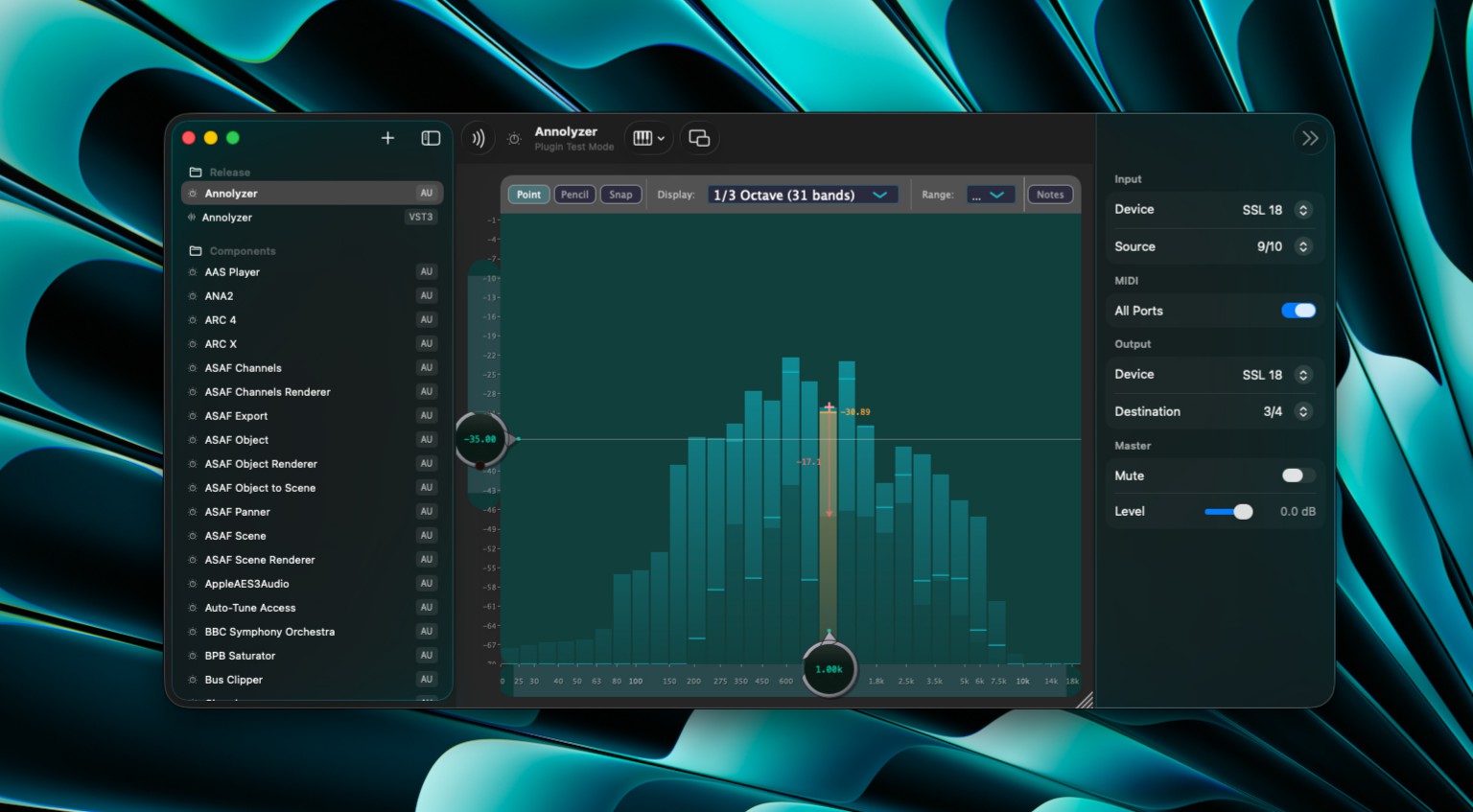
Hear a finished build in-process, like a lightweight host. Switch to Plugin Test Mode and it runs in its own container — Channel kills and respawns it on every rebuild, so a crash never takes the app with it.
Live rebuild watcher
Channel watches the folders your build writes to, not your toolchain. Xcode, CMake, hand-rolled scripts — anything that writes an AU or VST3 bundle triggers a reload.
Bookmarked build folders
Bookmark the folders your IDE writes to and Channel discovers every VST3 and AU inside. No whole-disk scans, no manual registration.
As many windows as you need
Host several plugins at once, each window with its own devices, pairs and MIDI. If two windows ever monitor the same input on the same output, Channel keeps one on your monitors and explains itself next to the Mute switch.
Channel strip
Input device, output device and a master fader — just enough monitoring to hear your plugin properly. Channel only asks for microphone access when you actually choose an input.
Output-pair routing
Send Channel’s output to a specific interface pair — capture it straight back into Logic Pro or any other DAW.
Up and running in a minute
No project files, no track creation, no I/O setup wizard. The whole loop is four steps.
-
1
Download & open
Grab the latest DMG — macOS 15 Sequoia or later — open it, and drop Channel into Applications.
-
2
Bookmark a build folder
Add the folder your IDE writes plugins to. Channel scans it and lists every VST3 and AU it finds.
-
3
Click to load
Pick a plugin and it loads straight into the detail view, with your input and output devices ready to go.
-
4
Rebuild & repeat
Compile again in your IDE and Channel reloads the plugin on its own. That’s the whole loop.
From one human to another
Channel is built and supported by The Mix Bus — a working studio. We (royally) do what we love, and share it, so you can love it too. If something’s off, or there’s a feature you’d love to see, drop us a line and a human will get back to you. Channel lets you know when updates are available, so you stay current with the latest features, enhancements and bug fixes.